Free tool
Photo Background Remover — Free, White or Transparent
A picture background remover for white and solid backgrounds — transparent PNG, in your browser.
Click the background to pick its color
Color-based removal — best on clear, solid backgrounds. Fine details like hair may need a higher tolerance or touch-up elsewhere.
What this tool does
Want to remove a background from an image for free? This tool removes a background right in your browser by letting you pick the background color and adjust a tolerance, producing a transparent PNG - and nothing is uploaded. It is built for speed and privacy, giving you an instant cutout without sending your photo anywhere.
How does it work? You choose the background color you want gone, then move a tolerance control to decide how close a pixel has to be to that color to be removed. Widen the tolerance to clear away more of the background in one pass, or narrow it to protect colors that sit close to your subject. A little experimenting with the slider usually lands a clean result, and the finished image downloads as a transparent PNG ready to drop onto any new background.
An honest note on what to expect: this is a fast, private, in-browser color-based remover, not a deep-learning cutout. It works best on photos with a clear, solid, or high-contrast background - think product shots, logos, and headshots on a plain backdrop. Because it matches colors rather than understanding the subject, busy or complex backgrounds will not be perfect, and fine details like flyaway hair or areas where the subject and background share a similar color can be tricky to separate cleanly. Knowing this up front helps you pick the right photos and get the best results.
The big advantages are privacy and speed. Because everything runs 100% in your browser, your images never leave your device and nothing is uploaded to a server, so you can clean up product and personal photos with confidence and get an instant result you can download right away.
How to use it
How to remove a background from an image
- 01
Upload your image
Select or drag a photo into the tool. It loads in your browser and is never uploaded. For best results, use an image with a clear, solid, or high-contrast background.
- 02
Pick the background color
Choose the color of the background you want to remove.
- 03
Adjust the tolerance
Move the tolerance control to set how broadly matching colors are removed. More tolerance clears more; less tolerance protects colors near your subject.
- 04
Preview the cutout
Check the result and fine-tune the color or tolerance until the background is cleanly removed.
- 05
Download the transparent PNG
Save the finished image as a transparent PNG.
For AI photo creators
A clean cutout on a transparent background is perfect for product images, logos, and composites - and it pairs naturally with creating fresh imagery to place behind your subject.
At LaFoto we are building an AI photo generator that creates original images from your ideas, ideal as new backgrounds or standalone pictures. It is free to start at launch.
Frequently asked questions
- Is this background remover free?
- Yes. Removing backgrounds is completely free and runs directly in your browser.
- How does it remove the background?
- You pick the background color and adjust a tolerance, and the tool makes the matching pixels transparent. It is a color-based remover, not a deep-learning cutout.
- What kind of images work best?
- Photos with a clear, solid, or high-contrast background work best - for example product shots, logos, and headshots on a plain backdrop. Busy or complex backgrounds will not be perfect.
- Are my images uploaded?
- No. The remover runs 100% in your browser, so your photos never leave your device and nothing is uploaded. That makes it private and instant.
- What format is the output?
- The result is a transparent PNG, so the removed area is see-through and ready to place on any background.
- Why are the edges or fine details not perfect?
- Because this is a color-based tool rather than an AI cutout, areas where the subject and background colors are similar - or fine details like hair - can be hard to separate cleanly. Adjusting the tolerance often helps.
More free tools
Background remover at a glance
- Runs in
- Your browser — nothing uploaded
- Account
- Not required
- Cost
- Free, no watermark
- Works offline
- After the page loads
- Formats
- JPEG, PNG, WebP
- File limit
- Your device memory, not a quota
How the cutout is made
Why a photo background remover works on some images and not others
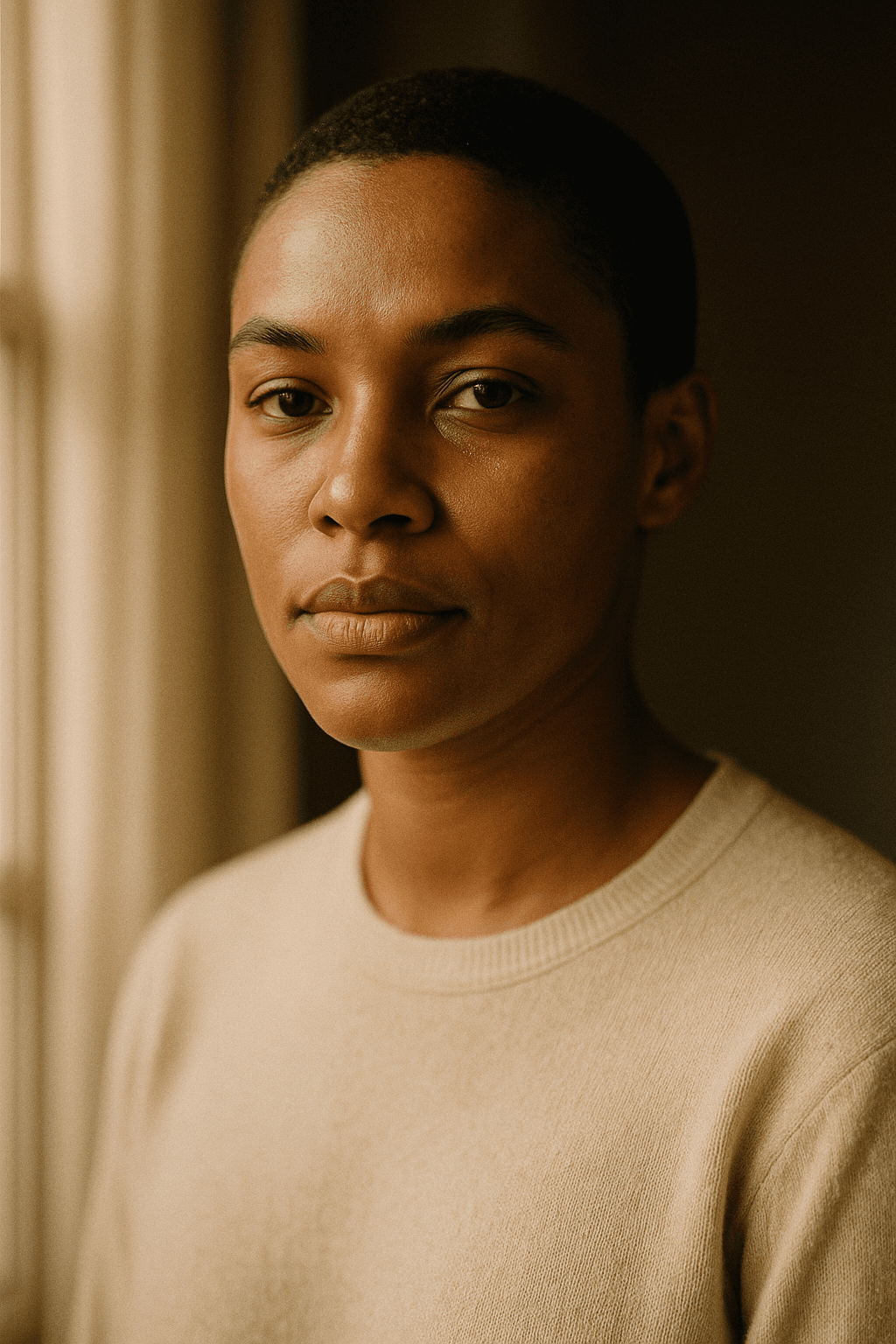
This tool separates by colour: you pick the background value and a tolerance, and every pixel close enough to that value becomes transparent. On a product shot against a white sweep or a logo on flat colour, the result is clean and instant.
It fails where colour alone cannot tell subject from background — hair against a busy street, a grey jacket against a grey wall, glass or smoke where the background is genuinely visible through the subject. Those need a model that understands what a subject is, not just what colour it is.

By background type
What kind of background are you removing?
The case this tool is built for
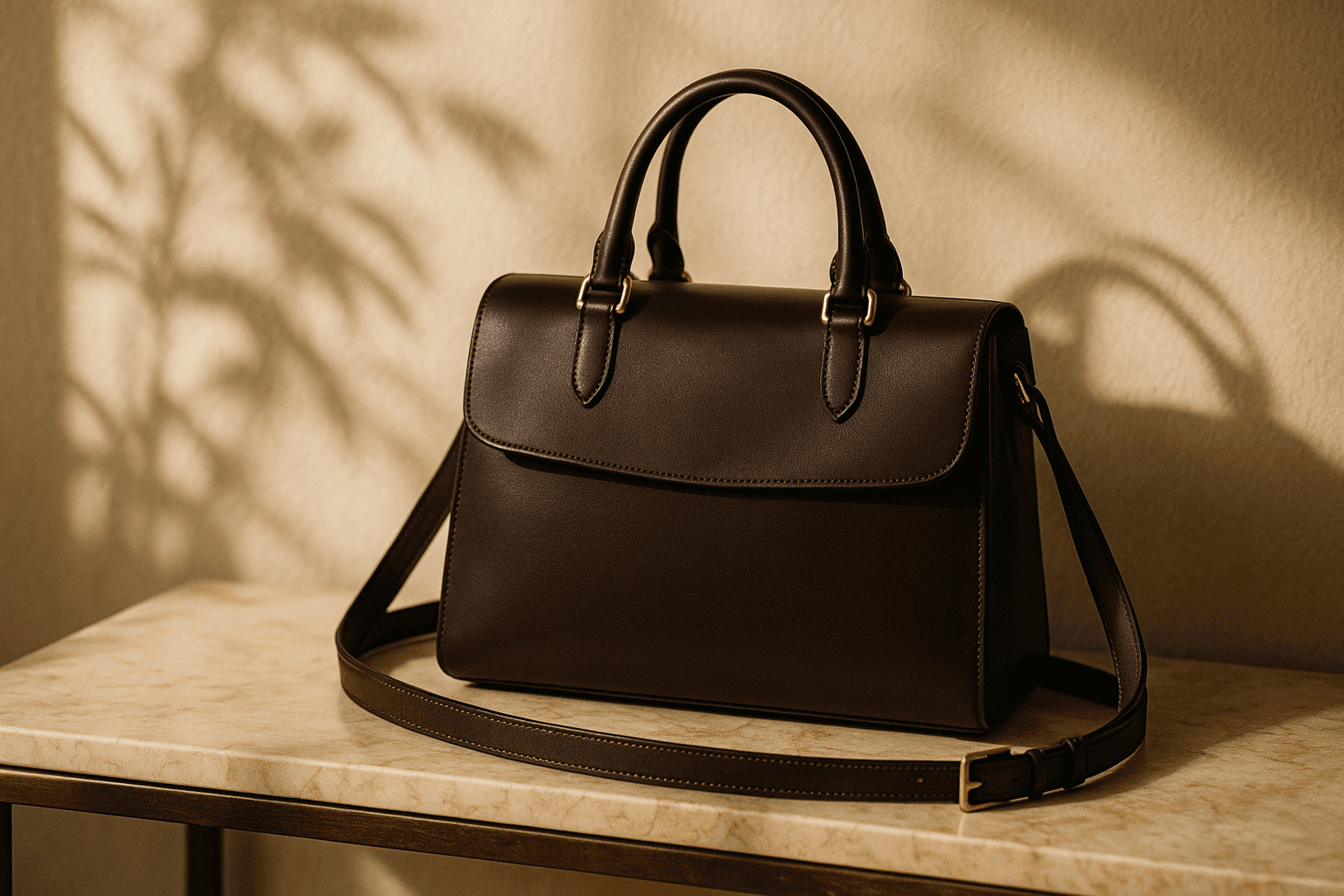
A white background remover is really a colour-distance threshold, and on a proper studio sweep it is close to perfect. A full AI background remover uses a segmentation model instead, which is what separates the two approaches. Where this one excels: Product photography, packshots and scanned documents all fall here.
Watch the shadow. A cast shadow is a darker version of the background, so it usually survives the cut and then looks wrong on a new background. Decide whether you want it before you start.
- Sample the background near the subject, not in a corner.
- Shadows share the background hue and often remain.
- Export PNG — JPEG cannot store transparency.
Keying a chroma background
A green or blue screen is the same operation with a more forgiving colour, chosen because it sits far from skin tones in colour space. Even lighting on the screen matters more than the shade of green.
Spill is the usual problem: green light bouncing onto the subject tints edges and hair. Reducing tolerance will not fix spill, because the tinted pixels genuinely are part of the subject.
- Light the screen evenly, separately from the subject.
- Keep the subject well away from the screen to reduce spill.
- Green suits skin tones; blue suits green wardrobe.
Where a colour threshold cannot help
If the background contains as many colours as the subject, no threshold separates them. This is the honest limit of a browser tool that ships no model.
The fix is a segmentation model that identifies the subject semantically rather than chromatically. That is a server-side job, and it is what the AI photo editor does with masked editing.
- Colour distance cannot separate similar tones.
- Hair, fur, glass and motion blur need semantic masking.
- Consider re-shooting on a plain background if you can.
Cutout problems
What the background remover handles
The failures people bring, and what each one actually is.
A coloured fringe around the subject
Anti-aliased edge pixels are a blend of subject and background, so they never match your sampled colour exactly. Raise tolerance slightly, or accept a one-pixel edge.
Holes appearing inside the subject
Tolerance is too high and part of the subject shares a tone with the background. Lower it and accept a slightly softer edge instead.
The transparency disappeared after saving
The file was saved as JPEG, which has no alpha channel. Export PNG or lossless WebP.
Hair that came out ragged
Fine hair is semi-transparent at the edges and a hard threshold cannot represent that. This needs alpha matting, not colour keying.
A subject that must sit on a new background
Cut out here, then generate or edit the new scene. Regenerating the whole frame would replace the subject too.
Related free tools
Tools that pair with cutouts
Beyond the cutout
What to do with a subject on transparency
Removing a background is step one. These are step two.
- resize to exact pixels
- image converter
- image compressor
- crop to a ratio
- pull colours from an image
- cut out a subject
- read photo metadata
- build a prompt
- anime AI generator
- cartoonize a picture
- pixel art generator
- which generator to pick
- Midjourney alternative
- Leonardo AI alternative
- LaFoto vs Ideogram
- Canva alternative for images
- seeds explained
- how far a result may drift
- what is inpainting
- the LaFoto journal
Start creating today
Generate your first image with the best AI image generator.
Turn a sentence into a finished, photorealistic image in seconds — then refine every detail. No setup, no Discord, no GPU.
Join 4,200+ creators using LaFoto