Free tool
Image Color Picker — Get HEX & RGB From a Photo
Pick any pixel’s exact color and extract a palette from an image.
Click anywhere to pick a color
What this tool does
Looking for a color picker from an image? Upload any photo and click any pixel to instantly read its exact color as a HEX code and RGB values - free, and running entirely in your browser with nothing uploaded. It is the quickest way to grab the precise color you see in a picture.
Want the overall color story of a picture rather than a single pixel? The tool also automatically extracts a dominant-color palette from your photo, so you can see the main colors at a glance and use them in a design, a brand kit, a presentation, or a mood board. This is perfect when you are matching a website to a logo, building a palette from a favorite photograph, or simply curious about the colors that make an image feel the way it does.
Every color code is one click away from your clipboard. Click a pixel to sample its color, or click a swatch from the palette, and copy the HEX or RGB value to paste straight into your design app, your CSS, a document, or a chat. There is no manual typing of long color codes and no risk of transcription mistakes.
Because everything runs 100% in your browser, your image never leaves your device and nothing is uploaded to a server. That means you can pick colors from private photos, client work, or unreleased designs with complete confidence, knowing the files stay entirely on your own computer. Whether you are a designer, a developer, a marketer, or just someone who loves a particular shade in a photo, this color picker gives you the exact values you need without any friction or privacy concerns.
A colour picker is only as useful as what you do with the value it returns, and the two most common jobs need different things from it. Matching a brand colour means you want the exact pixel value, unaveraged, from an area of flat colour rather than a gradient or a JPEG artefact. Building a palette means the opposite: you want the dominant colours across the whole image, which is why the extracted palette groups similar tones instead of returning every unique value in the file.
One practical caution about reading colour from a photograph: what you see on screen has already passed through the camera's white balance, the file's colour profile and your own display calibration. For design work that is usually fine. For anything where the colour has to be reproduced physically — print, paint, fabric — treat the HEX value as a close starting point rather than a specification, and confirm against a physical sample.
How to use it
How to pick colors from an image
- 01
Upload your image
Select or drag a photo into the tool. It opens in your browser without being uploaded to any server.
- 02
Click a pixel to sample a color
Click anywhere on the image to read that pixel's exact color as a HEX code and RGB values.
- 03
Review the dominant palette
Look at the automatically extracted palette to see the main colors found in the photo.
- 04
Copy a color code
Click a HEX or RGB value to copy it to your clipboard.
- 05
Use it in your project
Paste the color straight into your design tool, CSS, or document.
For AI photo creators
Colors set the entire mood of an image. Sampling the perfect shade from a reference photo is one way to plan a look - generating a brand-new image around that look is another.
LaFoto is an AI photo generator we are building to bring your visual ideas to life from a simple description. Generating original photos is free to start at launch.
Frequently asked questions
- Is the image color picker free?
- Yes. Picking colors and extracting palettes is completely free and runs directly in your browser.
- Does it give me HEX and RGB values?
- Yes. Clicking a pixel shows both the HEX code and the RGB values for that exact color, and you can copy either to your clipboard.
- What is the dominant-color palette?
- It is a set of the main colors automatically pulled from your photo, giving you a quick overview of the image's color scheme without clicking each pixel.
- Can I copy color codes quickly?
- Yes. Every color code can be copied to your clipboard with a single click, ready to paste anywhere.
- Is my image uploaded anywhere?
- No. The color picker runs 100% in your browser, so your photo never leaves your device and nothing is uploaded.
- What image formats can I use?
- You can load common photo formats such as PNG and JPG and pick colors from any pixel in the image.
More free tools
Colour picker at a glance
- Runs in
- Your browser — nothing uploaded
- Account
- Not required
- Cost
- Free, no watermark
- Works offline
- After the page loads
- Formats
- JPEG, PNG, WebP
- File limit
- Your device memory, not a quota
Reading colour from a photograph
What a HEX value from a photo really tells you
The value you sample has already passed through several transformations: the camera white balance, the file colour profile, and your own display calibration. It is an accurate reading of what your screen is showing, which is not quite the same as what the object was.
For screen work that distinction rarely matters — the same file will look the same to your visitors. For anything reproduced physically in print, paint or fabric, treat the sampled value as a close starting point and confirm against a real sample.
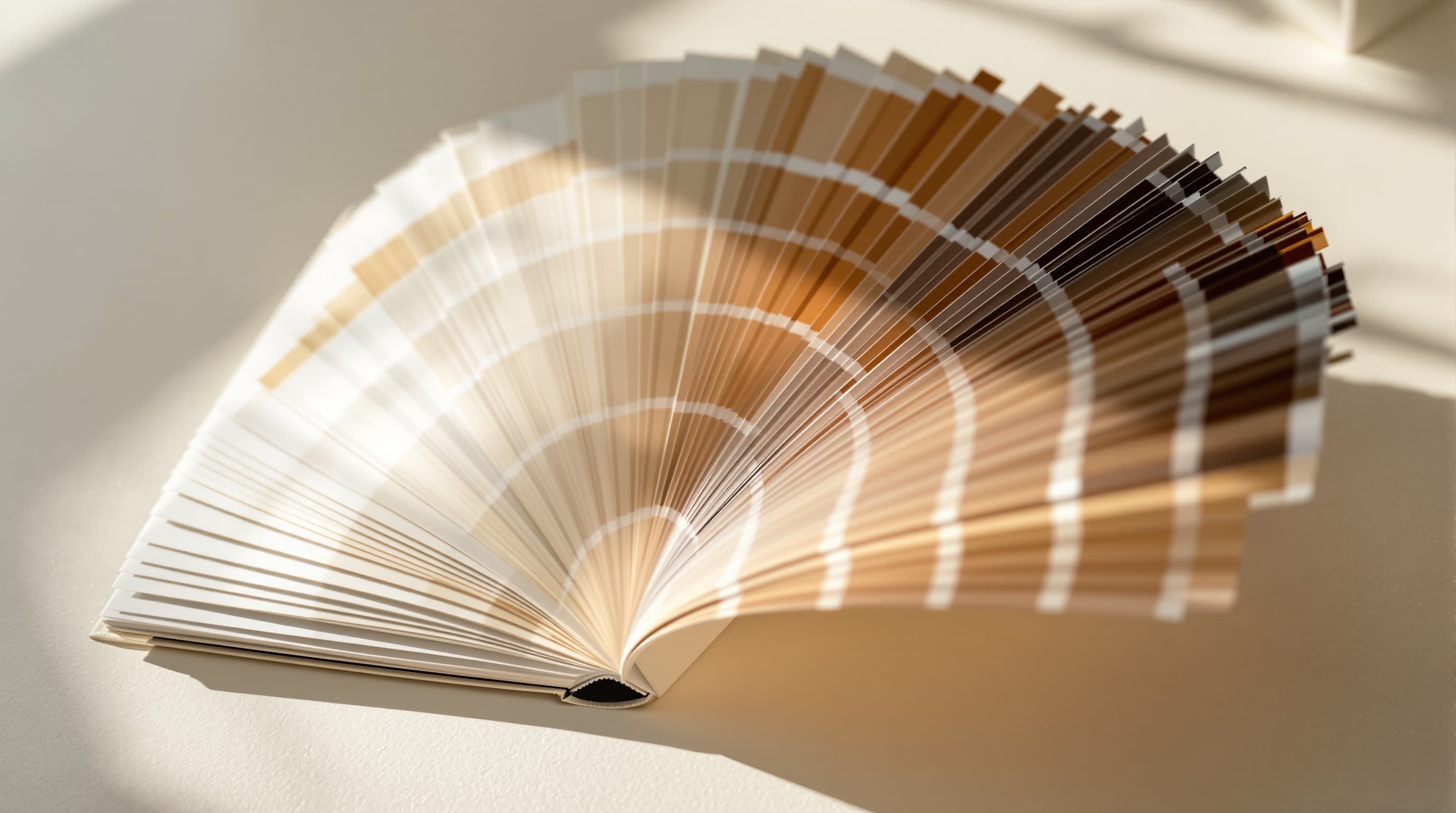
Three colour jobs
What are you sampling for?
Getting one value exactly right
Sample from the largest flat area of the colour you can find. Edges carry anti-aliasing that blends two colours, and JPEG compression stores colour at reduced resolution, so both give you a value that is close but wrong.
If the source is a logo on a website, the authoritative value is in its CSS or brand guidelines, not in a screenshot of it.
- Sample from flat interiors, never from edges.
- JPEG chroma subsampling shifts colour near boundaries.
- Prefer the published brand value over any sampled one.

Deriving a scheme from an image
A photograph you like already contains a coherent palette, because the light that made it was coherent. Extracting the dominant colours is a fast way to get a scheme that works without guessing at colour theory.
The useful structure is three roles rather than five equal swatches: a dominant that covers most of the surface, a secondary for structure, and one accent used sparingly.
- Assign roles — dominant, secondary, accent.
- An accent works because it is rare, not because it is bright.
- Test the pair for contrast before committing to text on it.
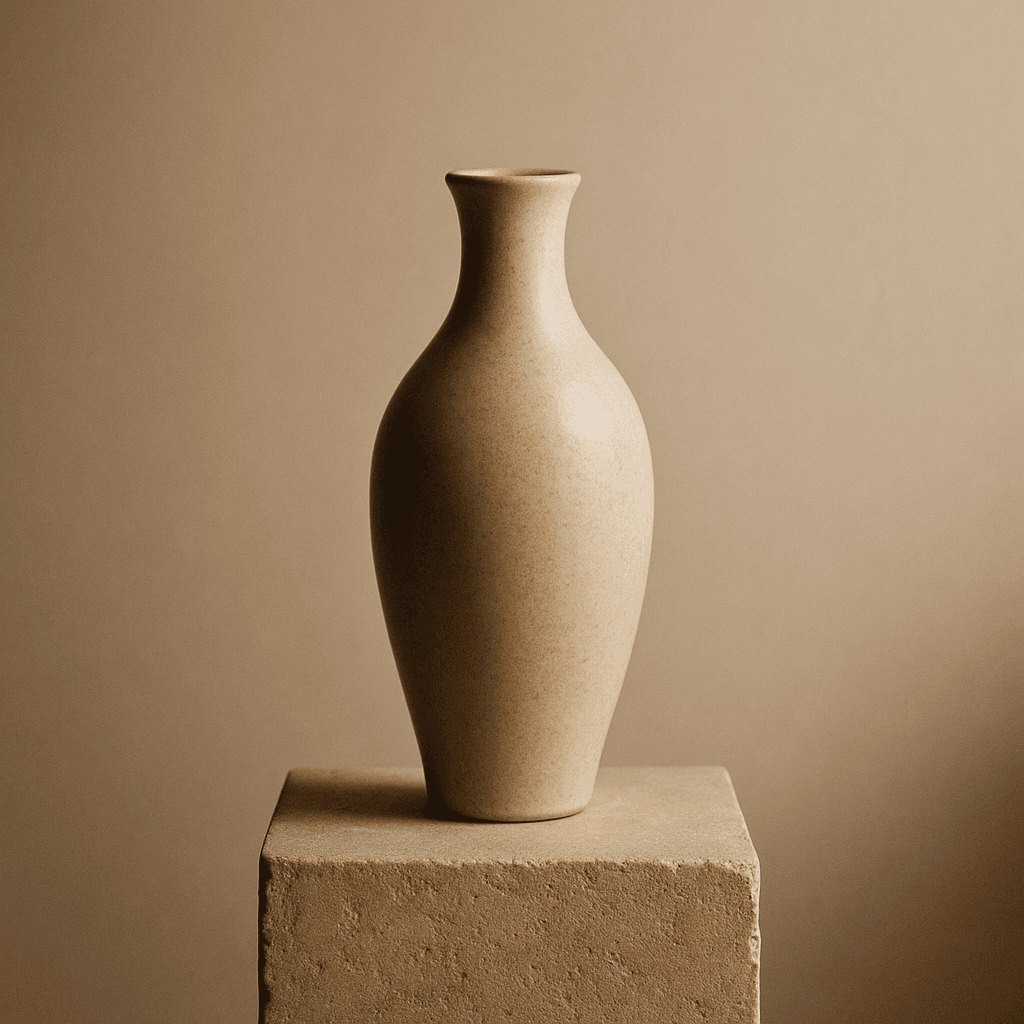
Making sure text stays readable
Sampling both the text colour and the background it sits on gives you the two values a contrast ratio needs. WCAG asks for at least 4.5:1 for body text and 3:1 for large text.
A colour that looks fine on your calibrated monitor in a bright room can fail badly on a phone outdoors, which is where most people will actually read it.
- 4.5:1 for body text, 3:1 for large text.
- Sample the actual background, not the one you intended.
- Check the worst case, not the average.
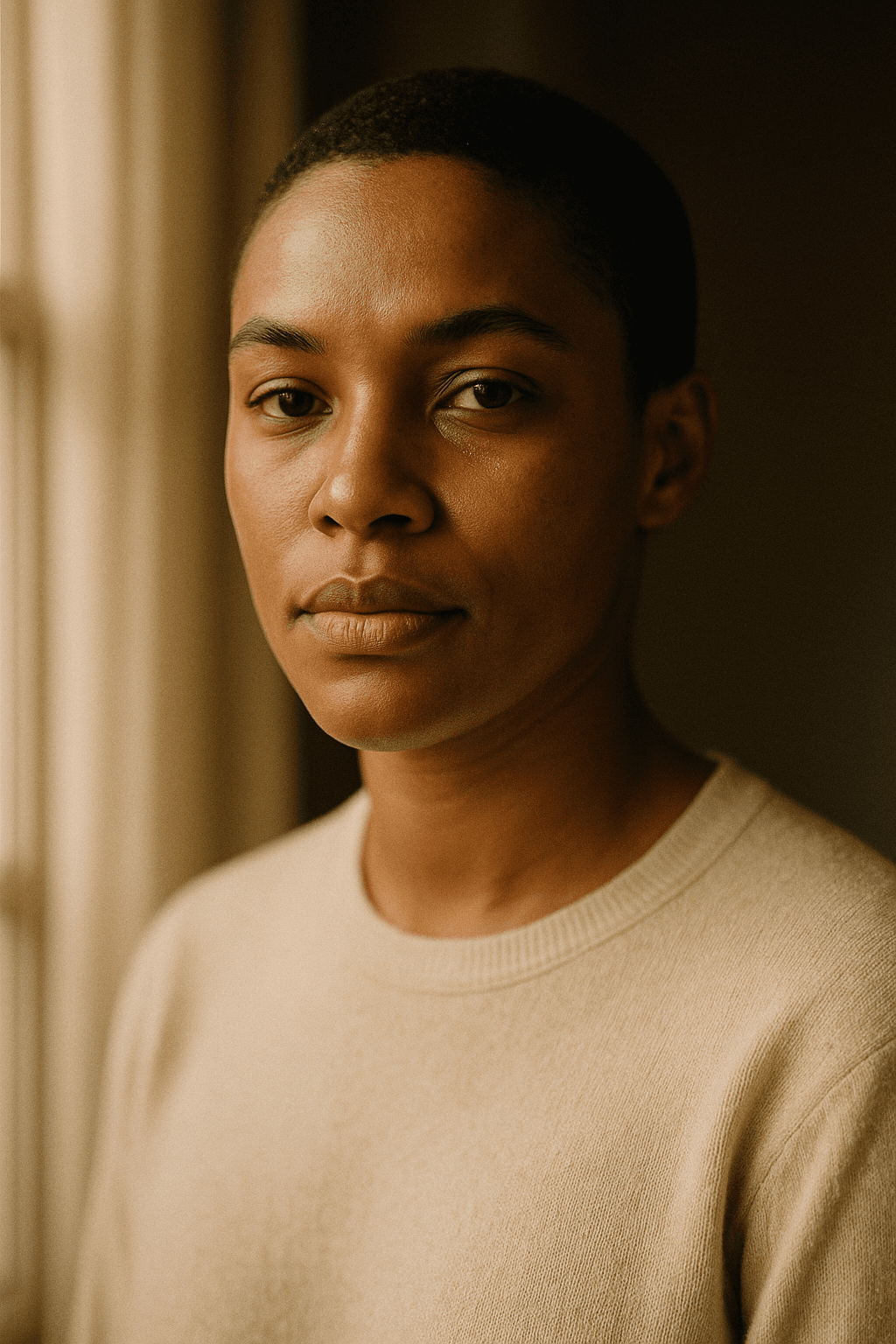
Colour questions
What the colour picker handles
The practical cases, and where sampled colour stops being reliable.
The colour looks different in my design tool
Almost always a colour profile difference. The same RGB numbers render differently under sRGB and Display P3, and screenshots frequently lose the profile entirely.
Sampling from a screenshot of a website
Works, but the screenshot may have been re-compressed. For a brand colour, take the value from the site CSS instead.
Getting a colour for print
Screen colour is additive light and print is subtractive ink; some screen colours simply cannot be printed. Use the sampled value as a brief for a printer, not a specification.
Extracting a palette from a dark photograph
Low-key images return several near-black swatches that are technically dominant and useless. Sample the lit areas deliberately instead.
Matching a colour across two photographs
If they were shot under different light, no single value matches both. Correct white balance first, which is what the AI photo enhancer does.
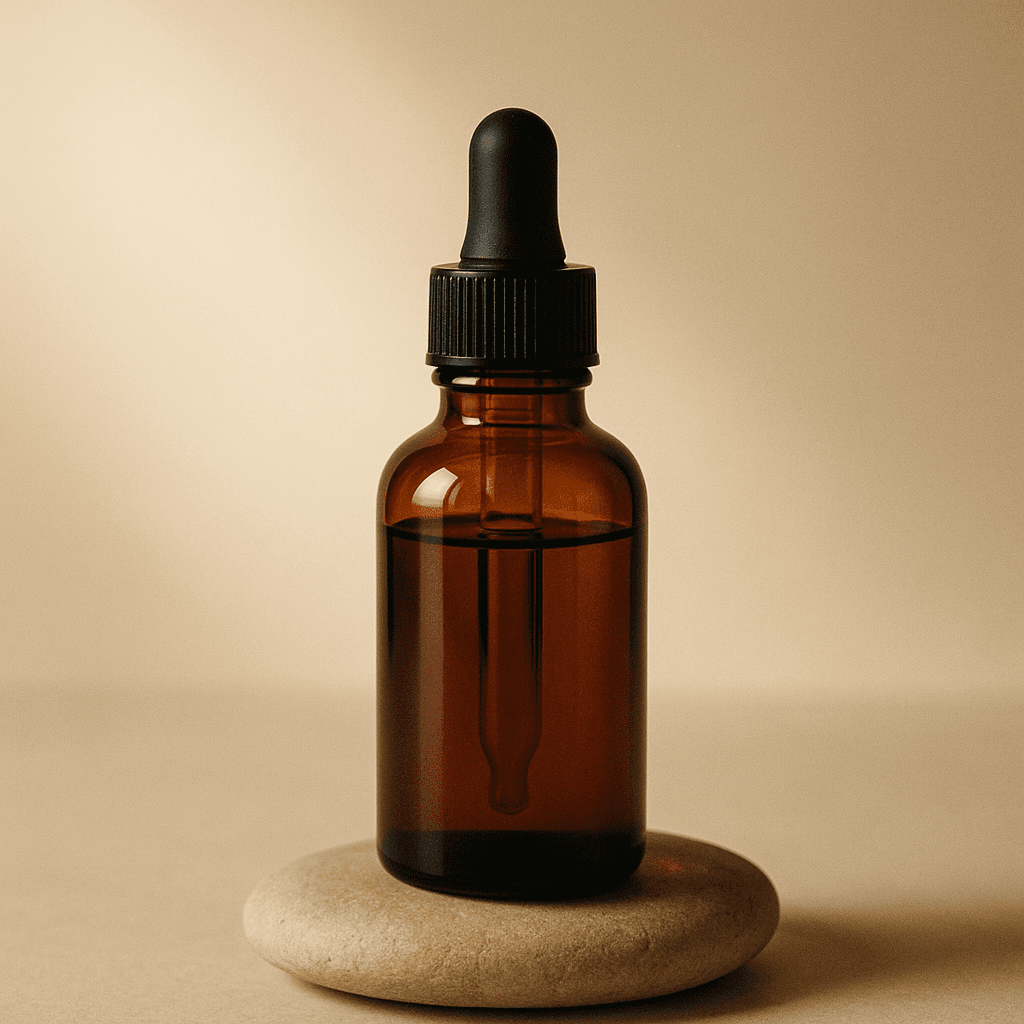
Related free tools
Tools that pair with colour work
From colour to image
Put a palette to work
Naming colours in a prompt is the most reliable control there is.
- resize to exact pixels
- JPG, PNG and WebP
- image compressor
- image cropper
- colour picker from image
- remove a background
- EXIF viewer
- AI prompt generator
- anime AI generator
- cartoonize a picture
- pixel art style
- best AI image generators
- LaFoto vs Midjourney
- compared with Leonardo
- Ideogram alternative
- LaFoto vs Canva
- what is a seed
- how far a result may drift
- inpainting explained
- AI photography guides
Start creating today
Generate your first image with the best AI image generator.
Turn a sentence into a finished, photorealistic image in seconds — then refine every detail. No setup, no Discord, no GPU.
Join 4,200+ creators using LaFoto