Free tool
Image Cropper — Crop Images Online Free
Crop with a draggable selection and aspect-ratio presets.
What this tool does
Want to crop an image online for free? This tool lets you crop a photo with a simple draggable selection right in your browser - no installs, no account, and nothing uploaded. Trim away the parts you do not want and keep only the area that matters.
Need a precise shape? Crop free-form to grab any region you like, or lock the selection to a preset aspect ratio such as 1:1, 4:5, 16:9, or 3:2 when you need the result to fit a specific frame. Just drag the box to position it and resize it until your crop sits exactly where you want, with the locked ratio holding the proportions steady so the final image fits its destination perfectly. This is ideal for square profile pictures, portrait posts, widescreen banners, and standard print sizes alike.
When the selection looks right, export the cropped area as a PNG or a JPG and download it straight to your device. It is a fast, no-fuss way to trim distractions from the edges, focus attention on your subject, straighten up a composition, or reshape a photo for a particular layout - all without opening heavy editing software.
Because cropping runs 100% in your browser, your images never leave your device and nothing is uploaded to a server. Your photos stay completely private from start to finish, which makes this a safe choice for personal pictures, client work, and anything you would rather not send to the cloud. With no software to install and no account to create, you can crop a photo the moment you need to and download the result right away.
How to use it
How to crop an image
- 01
Upload your image
Select or drag a photo into the tool. It opens in your browser and is never uploaded.
- 02
Choose free-form or a preset ratio
Crop freely, or lock the selection to a preset aspect ratio such as 1:1, 4:5, 16:9, or 3:2.
- 03
Drag the selection
Move and resize the draggable selection box to frame exactly the area you want to keep.
- 04
Preview the crop
Check that the selected area captures what you intend before exporting.
- 05
Export the cropped image
Download the cropped area as a PNG or JPG.
For AI photo creators
Cropping helps you frame the strongest part of an image. But what if you could create the whole image to fit your frame from the start?
LaFoto is an AI photo generator we are building that turns your ideas into original images. Generating photos you can then crop and shape with tools like this one is free to start at launch.
Frequently asked questions
- Is this image cropper free?
- Yes. Cropping photos is completely free and runs directly in your browser.
- Can I crop to a specific aspect ratio?
- Yes. You can lock the selection to presets like 1:1, 4:5, 16:9, and 3:2, or crop free-form for any shape.
- Are my photos uploaded when I crop them?
- No. The cropper runs 100% in your browser, so your images never leave your device and nothing is uploaded.
- What formats can I export?
- You can export the cropped area as a PNG or a JPG.
- How do I crop a square image for a profile picture?
- Lock the selection to the 1:1 preset, drag it over the part of the photo you want, and export the cropped square.
- Will cropping reduce my image quality?
- Cropping simply removes the area outside your selection; it does not re-stretch the pixels you keep, so the cropped region stays as sharp as the original.
More free tools
Image cropper at a glance
- Runs in
- Your browser — nothing uploaded
- Account
- Not required
- Cost
- Free, no watermark
- Works offline
- After the page loads
- Formats
- JPEG, PNG, WebP
- File limit
- Your device memory, not a quota
Cropping as a decision
Cropping is composition, not trimming
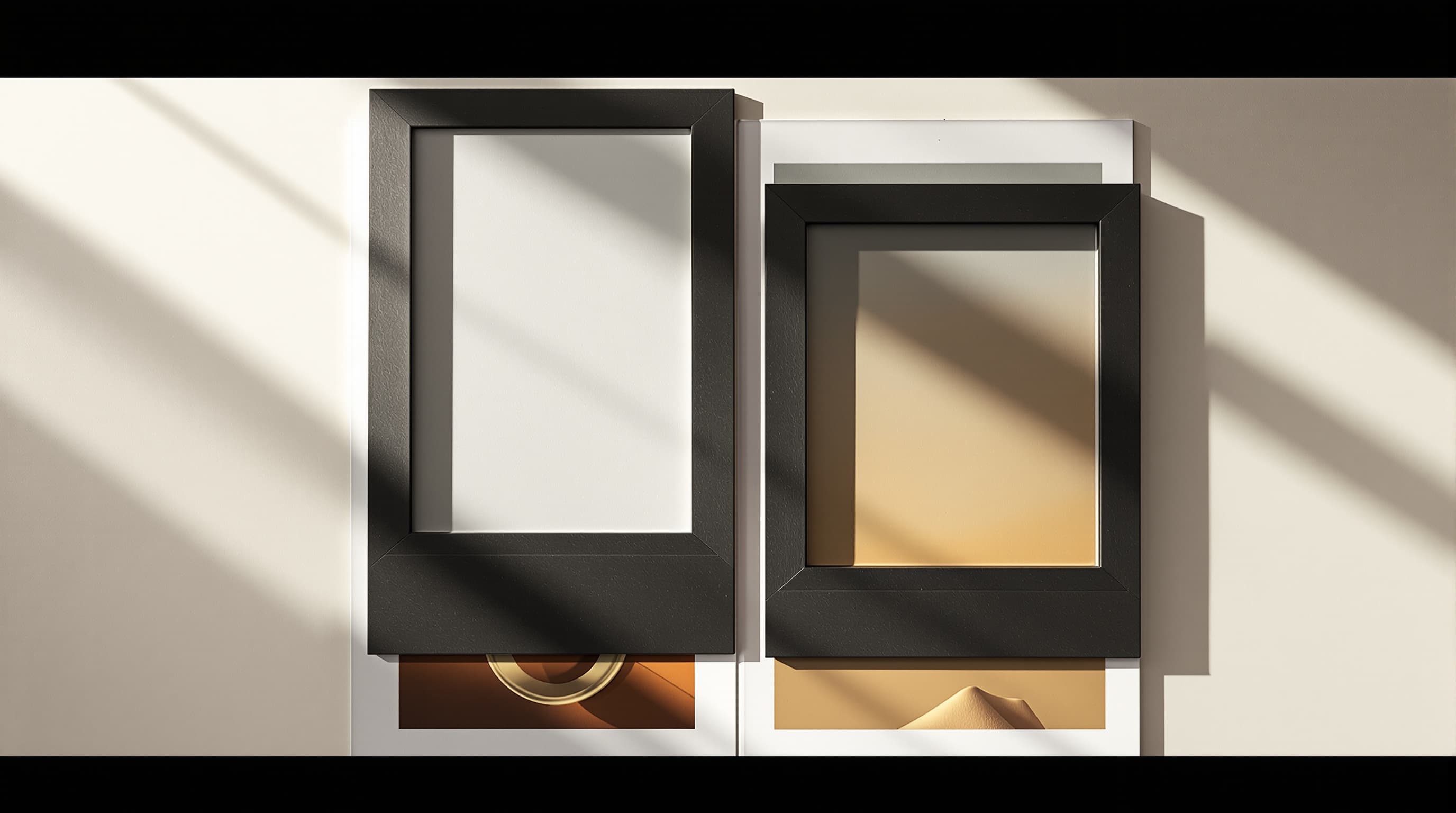
The crop decides what the photograph is about. Moving the frame a few percent changes which element the eye lands on first, whether the subject has room to look into, and whether the horizon reads as level even when it is.
The most common improvement is simply cutting more than feels comfortable. Photographs are usually taken with too much context because the viewfinder shows everything; the version that works is often much tighter than the one that felt right at the time.
Three crops, three purposes
Crop to a ratio, to pixels, or to the subject
When a platform dictates the shape
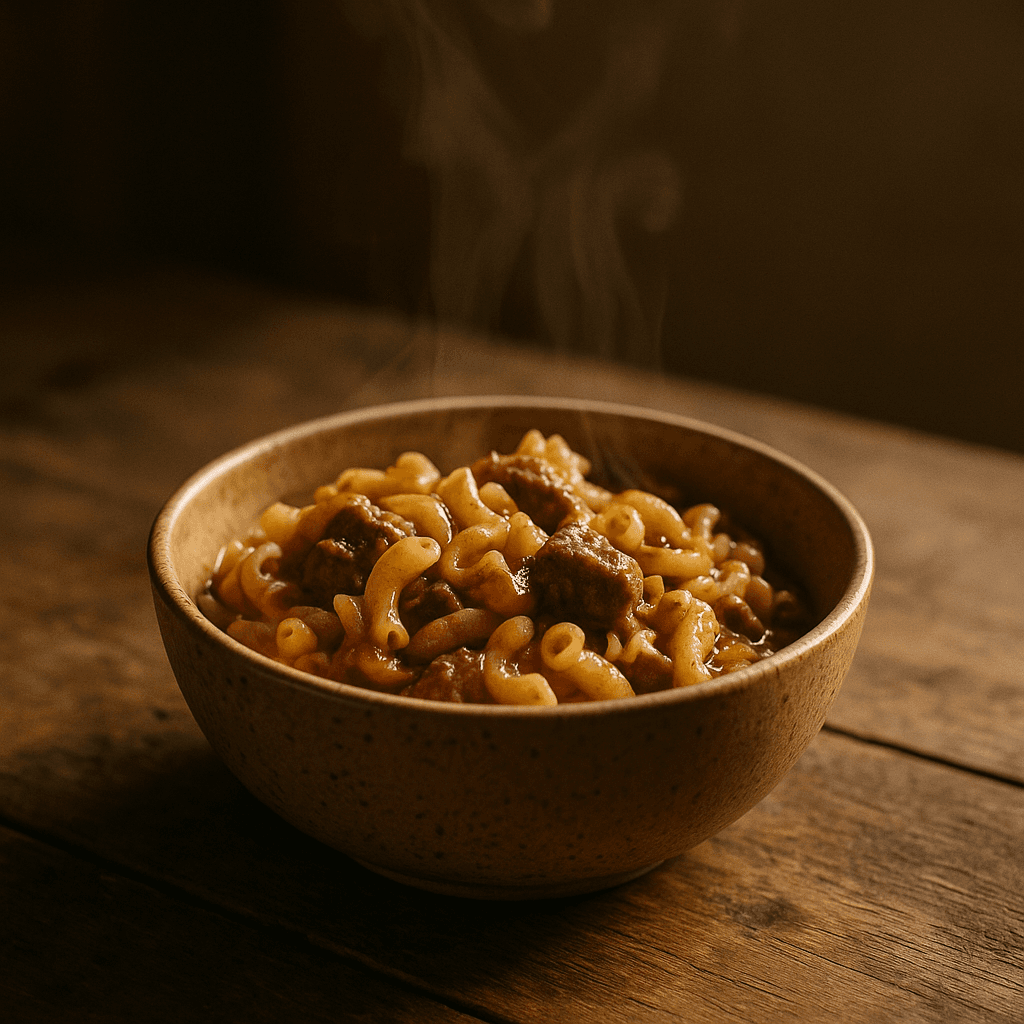
1:1 for a marketplace thumbnail, 4:5 for a portrait-orientation social post, 16:9 for a video thumbnail or banner, 3:2 if you want it to read as a photograph.
Locking the ratio and moving the frame is far better than cropping freely and hoping the numbers land — free-cropping to an approximate shape means the platform crops again.
- Set the ratio first, then position the frame.
- 4:5 occupies the most vertical space in most feeds.
- Check whether the destination crops to a circle.
When the specification is absolute
Some destinations require exact dimensions rather than a ratio — banner slots, email headers, and older CMS templates in particular.
Crop to the ratio first and resize to the pixel target second. Cropping directly to an odd pixel size usually means the frame you wanted was not available at that shape.
- Crop for shape, resize for size — in that order.
- Confirm whether they want 1x or 2x for retina.
- Padding to the target beats distorting to it.
When you are improving the photograph
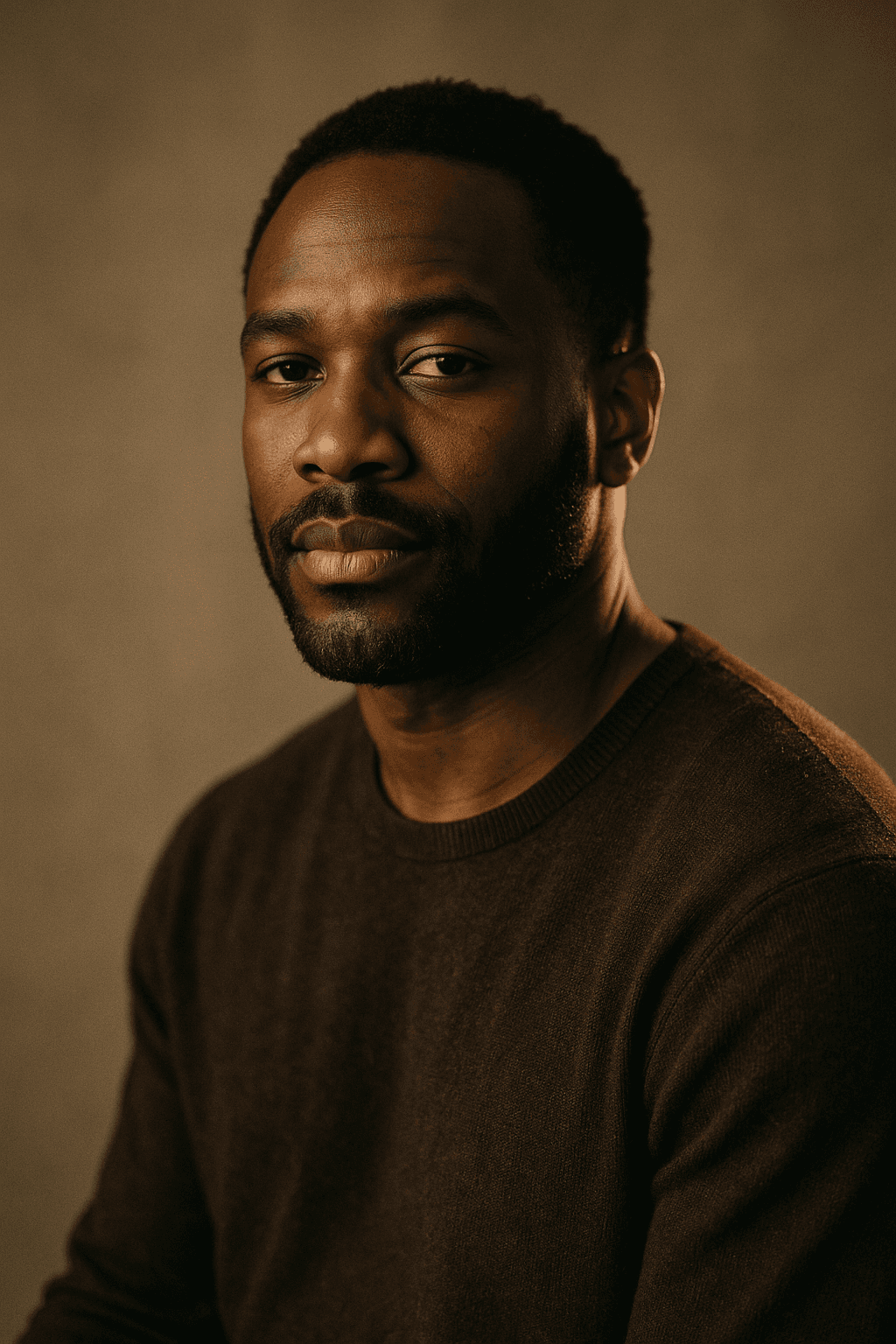
Here nothing external is dictating terms, so the useful questions are compositional: does the subject have room in the direction it faces, is there anything at the frame edge pulling attention outward, and is the horizon level.
Straightening costs pixels — rotating a rectangle inside a rectangle always crops. Do it before the final crop rather than after.
- Leave space in the direction a subject faces or moves.
- Cut anything touching the frame edge that is not the subject.
- Straighten first; rotation eats into the crop you keep.
Cropping questions
What the image cropper handles
The situations that come up, and the right move in each.
A profile picture that gets cut off
Most platforms mask a square upload to a circle. Keep the subject well inside the middle and expect the corners to disappear entirely.
A group photo for a banner slot
Extreme wide ratios rarely suit group photographs. Either crop to a subset of the group or extend the frame with outpainting rather than cutting people out.
A crooked horizon
Straighten before cropping. Rotating afterwards forces a second crop and usually loses the composition you just chose.
Needing several ratios from one photo
Crop each one from the original. Deriving a 16:9 from an already-cropped 1:1 leaves you with far less to work with.
A crop that leaves the image too small
Crop first, then enlarge with the AI image upscaler. A browser resizer only spreads the remaining pixels thinner.
Related free tools
Tools that pair with cropping
Beyond cropping
When the frame you want was never captured
A crop can only remove. These can add.
- free image resizer
- JPG, PNG and WebP
- shrink a file size
- crop to a ratio
- pull colours from an image
- cut out a subject
- read photo metadata
- build a prompt
- anime image style
- cartoonize a picture
- pixel art generator
- the ranked comparison
- Midjourney alternative
- LaFoto vs Leonardo AI
- Ideogram alternative
- LaFoto vs Canva
- what is a seed
- what is denoise strength
- inpainting explained
- AI photography guides
Start creating today
Generate your first image with the best AI image generator.
Turn a sentence into a finished, photorealistic image in seconds — then refine every detail. No setup, no Discord, no GPU.
Join 4,200+ creators using LaFoto